
For Group Edition
Please note: Operoo will no longer support new versions of SIMS after July 31, 2023. Specifically, this will end support for the integration between Operoo and SIMS. If you are using the 2-way SyncMonkey integration, please contact the Support Team who will help and guide you through migrating your integration from SyncMonkey to Wonde.
Pre-requisites
-
The agent requires .net Framework 4.8 installed on the Windows computer
-
The SIMS user account used to run the service must:
-
be able to log in to SIMS
-
have write access to C:\ProgramData\CareMonkey and access to the internet
-
have read access to the SIMS pre-admission records
-
have read access to the contact relationships of pre-admission records
-
contain a forename that is not left blank
-
Anti-virus - please add SyncMonkeyRunner.exe to your anti-virus software exceptions
Syncing of Medical Details
On the first run of the sync, Operoo inserts hundreds of medical conditions into the SIMS lookup tables. Schools might already have existing medical conditions with the same description in SIMS. SIMS represents lookup items that have the same description with a "(number)" appended to it. e.g. Asthma, Asthma (1).
Please see this Knowledge Base article for more information - How Operoo syncs medical conditions to/from SIMS to Operoo (Group Edition)
SIMS USER ACCOUNT
We recommend that the school IT administrator create a new SIMS user account specifically for the CareMonkey SIMS Sync Agent.
This new SIMS user account should have full administrator privileges for SIMS.
Step 1: Configure SIMS credentials in Operoo
-
Go to Settings > Integration Settings
- Choose Add Integration > SIMS
- Set up the configuration settings

 IMPORTANT:If you're using a shared drive, always use UNC paths when entering drive path information.
- Make sure the path to the SIMS connect.ini file folder is correct.
- At times the connect.ini file from SIMS cannot be found by the service. Always check to make sure the network path contains the file connect.ini
- Save settings
- Click Download Config to download the Sync Agent Configuration file
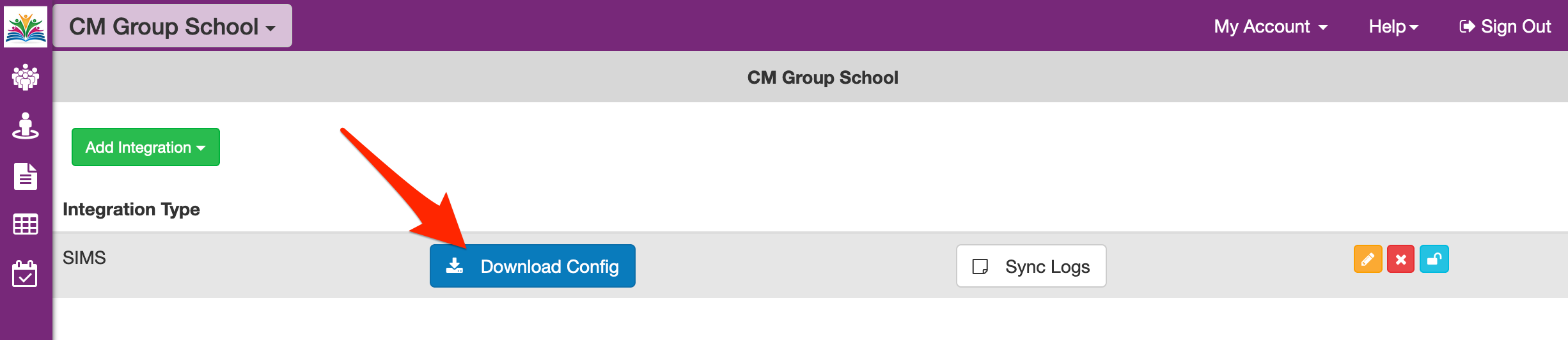
- Make sure the downloaded file is named “SyncMonkey.Agent.exe.config”
- This file will is required for the installation of the Sync Agent.
Step 2: Installation of the Sync Agent
- Pre-requisites
-
See the pre-requisites at the very top of this page
-
Navigate to Operoo's downloads website and download the latest zip file of the SyncMonkey.Agent (eg. SyncMonkey.Agent.v#.#.#.#.zip)
- On a Server with SIMS installed and configured
-
Create folder C:\CareMonkey
-
copy the zip file retrieved in Step 2(b) to this folder
-
unzip the contents of the zip, creating the folder 'C:\CareMonkey\SyncMonkey.Agent
-
copy the file SyncMonkey.Agent.exe.config retrieved from Operoo in Step 1 to folder C:\CareMonkey\SyncMonkey.Agent overwriting the existing file
-
Some versions of Windows require clicking on an "Unblock" button on .exe and .cmd files after downloading. To check this:
-
right-click on SyncMonkey.Agent.exe and choose Properties.
-
Click Unblock
-
Click OK
-
Next, right-click the file C:\CareMonkey\SyncMonkey.Agent\install_service.cmd and select Run as administrator from the menu
d. Open the Windows Service Manager and verify that the service “ CareMonkey Agent ” was created
Step 3: User Configurations for the Sync Agent service
The windows credential used to run the “CareMonkey Agent” service are by default configured as the Local System account.
Often this account will not have enough privileges to connect to the internet in a school environment.
- In "Windows Service Manager", open the configurations for the “CareMonkey Agent” service
- Select the Log On tab
- Select This account
- ask the School IT Administrator to configure a domain user with access to the internet and write access to C:\ProgramData\CareMonkey
Step 4: Test the Sync Process
Anti-virus applications have been known to cause sync errors. Please add our sync application, syncmonkeyrunner.exe to your anti-virus exceptions.
-
Right-click on the CareMonkey Agent service
- Select Start
-
Navigate to the following folder (this is a hidden windows folder)
-
C:\ProgramData\CareMonkey\Logs
- Once the windows service is started, this folder will contain Log files of the two processes involved:
-
SyncMonkey.Agent.log – Windows service “CareMonkey Agent”
-
SyncMonkey.Runner.log – Process which sends information from SIMS to Operoo
Additional information about the running of the Sync Process can be found in Operoo's Sync log page Settings > Integration Settings
Operoo's Sync Logs page
If errors are displayed in the log files ( C:\ProgramData\CareMonkey\Logs) or in the Operoo Sync Logs page above, contact our support team or check this article to make sure the SIMS user has all required permissions.
IMPORTANT ADDITIONAL INFORMATION
Pre-admissions read access error
The following error will be logged if the sync has been set up to sync pre-admissions data but the user does not have read access to this information.
Follow this article to check the user account has all the required permissions
SIMS Calendar Year Behaviour
- SIMS has configurations for Academic Years
- Academic years have a start date and an end date.
- The assignment of students to classes depends on the Academic Year selected.
There are two types of Academic Year selections:
- Default on SIMS - this is applied for the entire system and roll over when the school transitions its defaults to the next academic year
- Selected per SIMS user - This is an override configuration on the user. if this is selected, it remains when the schools transitions academic year to the next and must be manually changed.
Always make sure that the 'caremonkey' user configured for the sync has the correct academic year selected
Related Articles:
- How to check and verify permissions for Operoo SIMS Sync
- Syncing pre-admissions and future students in SIMS
- How Operoo syncs medical conditions to/from SIMS to Operoo (Group Edition)