
How does an Administrator add all students to an eForm?
In Operoo, there’s a new way to add Students and Staff to eForms and Groups. The change can be seen in the two screenshots below:
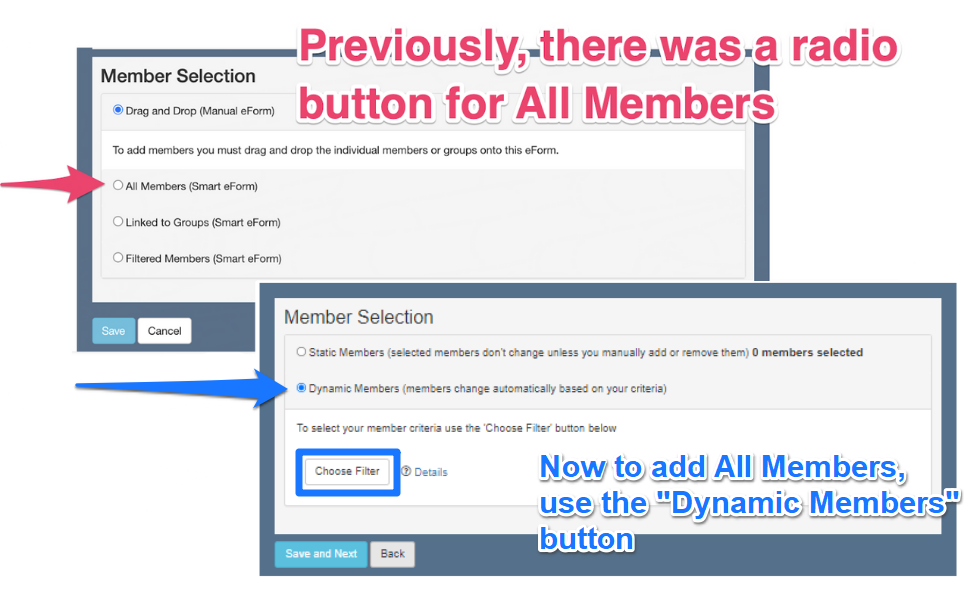
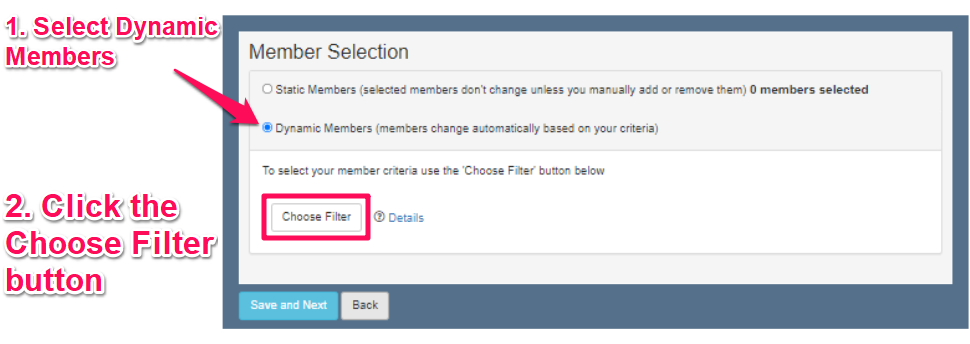
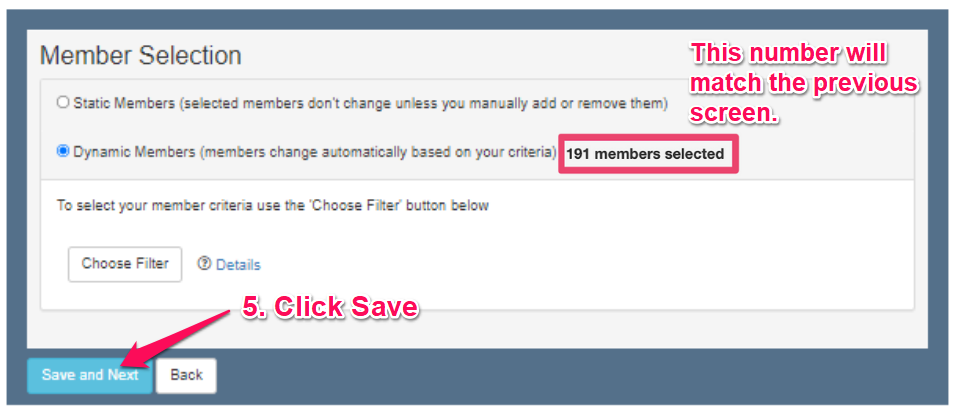
To add all students or staff to a new eForm, you must first click on the “Dynamic Members” radio button, then the Choose Filter button.
Then, the following screen will pop up:
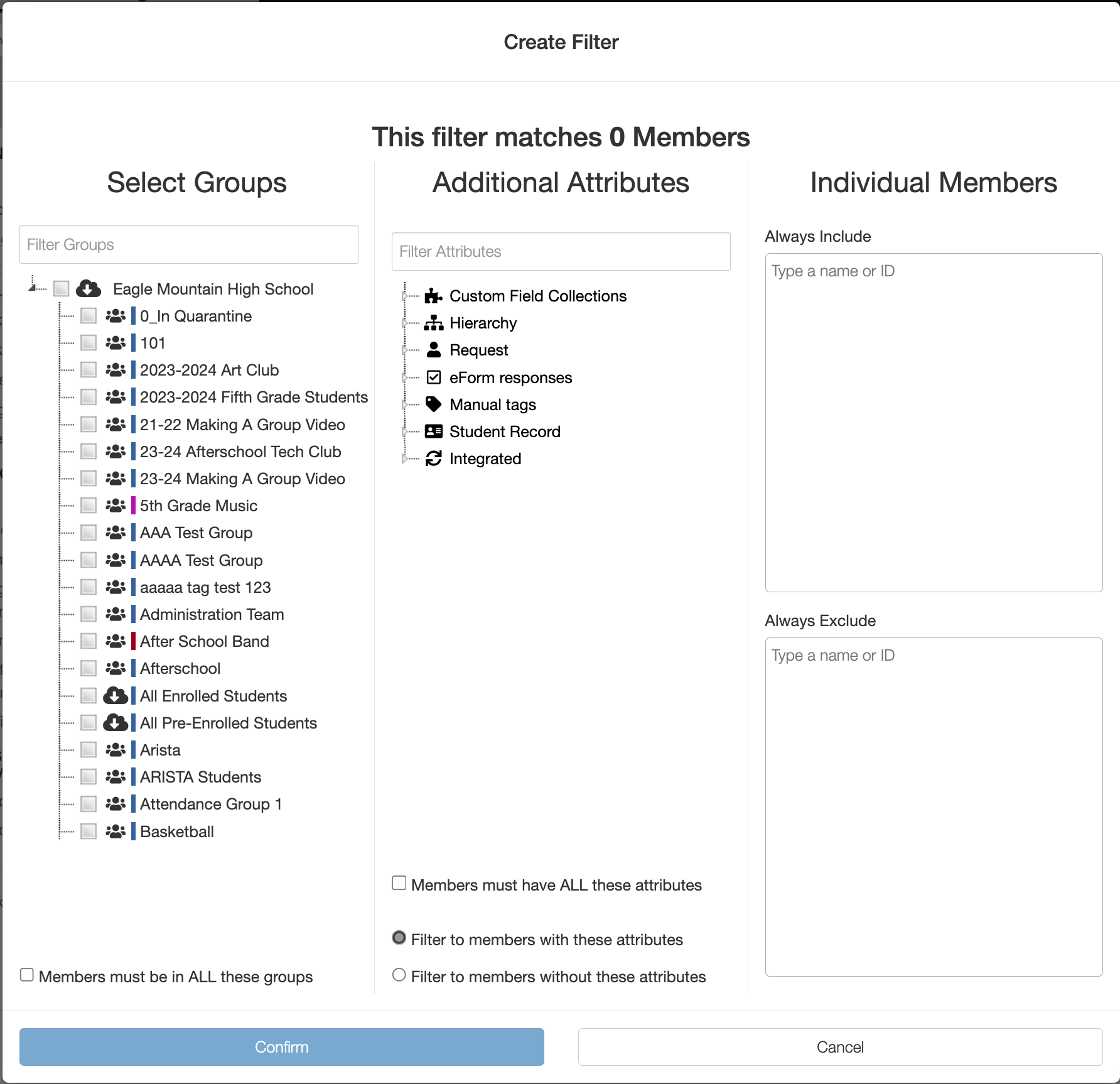
To assign an eForm to the entire school, select the topmost level and click Confirm:
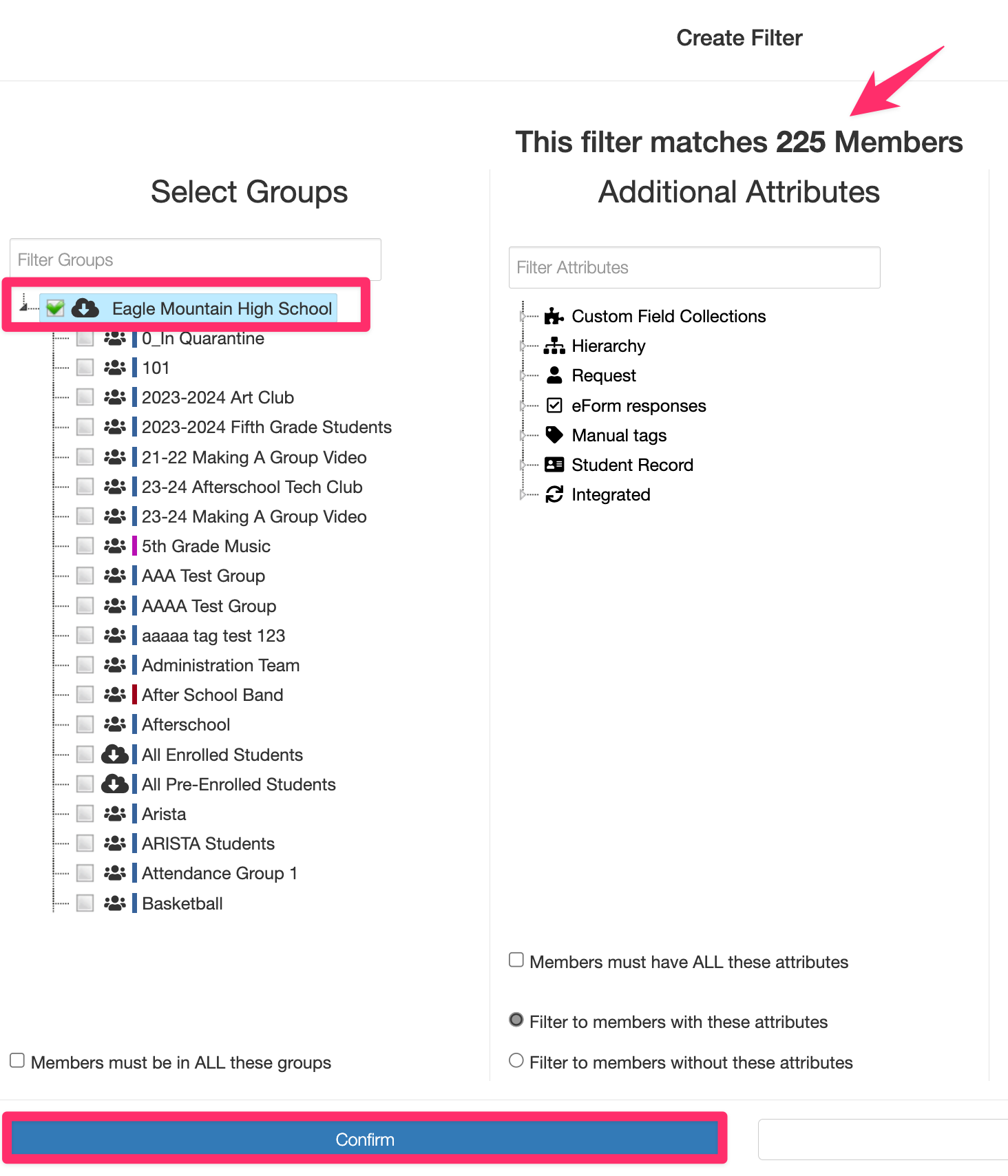
Then you’ll be taken back to your eForm. Notice the preview will match the previous screen. Click Save and Next to continue creating your eForm.
In Operoo, there’s a new way to add Students and Staff to eForms and Groups. The change can be seen in the two screenshots below:
To add all students or staff to a new eForm, you must first click on the “Dynamic Members” radio button, then the Choose Filter button.
Then, the following screen will pop up:
To assign an eForm to the entire school, select the topmost level and click Confirm:
Then you’ll be taken back to your eForm. Notice the preview will match the previous screen. Click Save and Next to continue creating your eForm.
Ways to Use Drag & Drop
2 Ways to Add Student(s) to Group(s)
- Locate the students you want to add.
- Select their profiles.
- Drag and drop them into the Groups section in the lower-left corner.
Alternatively, you can also accomplish this via the Groups section:
- Go to the Groups section.
- Right-click on the group you want to update.
- Select Manage Group.
- Add your students or members.
2 Ways to Add Student(s) to eForm(s)
Just like dragging and dropping students into a group, you can also drag and drop them into eForms.
- Locate the students you want to add.
- Select their profiles.
- Drag and drop them into the eForms section.
Alternatively, you can also accomplish this via the eForms section:
- Go to the eForms section.
- Click on the three-line menu from the eForm you need to update.
- Go to the Members tab.
- Add your students or members.