
Overview of the buttons
When adding an eForm Question, there are different options available. Here is an overview of these options:
Click and drag to move a question up or down the list
|
|
|
|
Click to move a question to a specific position |
Click to remove that particular option from the available answers |
|
Click to add an additional answer choice to the question. |
|
|
|
Click to remove the question; it will also remove the content |
Required: |
To ensure a mandatory answer to the question - tick or untick the box accordingly. |
Question Types
1. Multiple choice question
The Multiple Choice question allows the respondent to choose one or more answers from the options.
2. Single choice question
A single choice question allows respondents to choose one answer to the question.
3. Single text line response question
A single text line response question allows the respondents to provide a single text line text response (typically used for short answers).
4. Textbox question
A textbox question allows the respondents to provide a detailed text response, spanning multiple lines
5. Yes/no question
A Yes/No question allows the respondent to choose only Yes or No.
6. Checkbox question
A checkbox question is essentially a Yes/No question on a single line, commonly used in documents that require you to accept Terms & Conditions.

7. Attachment request
This is used when you require any extra documents from the respondents.
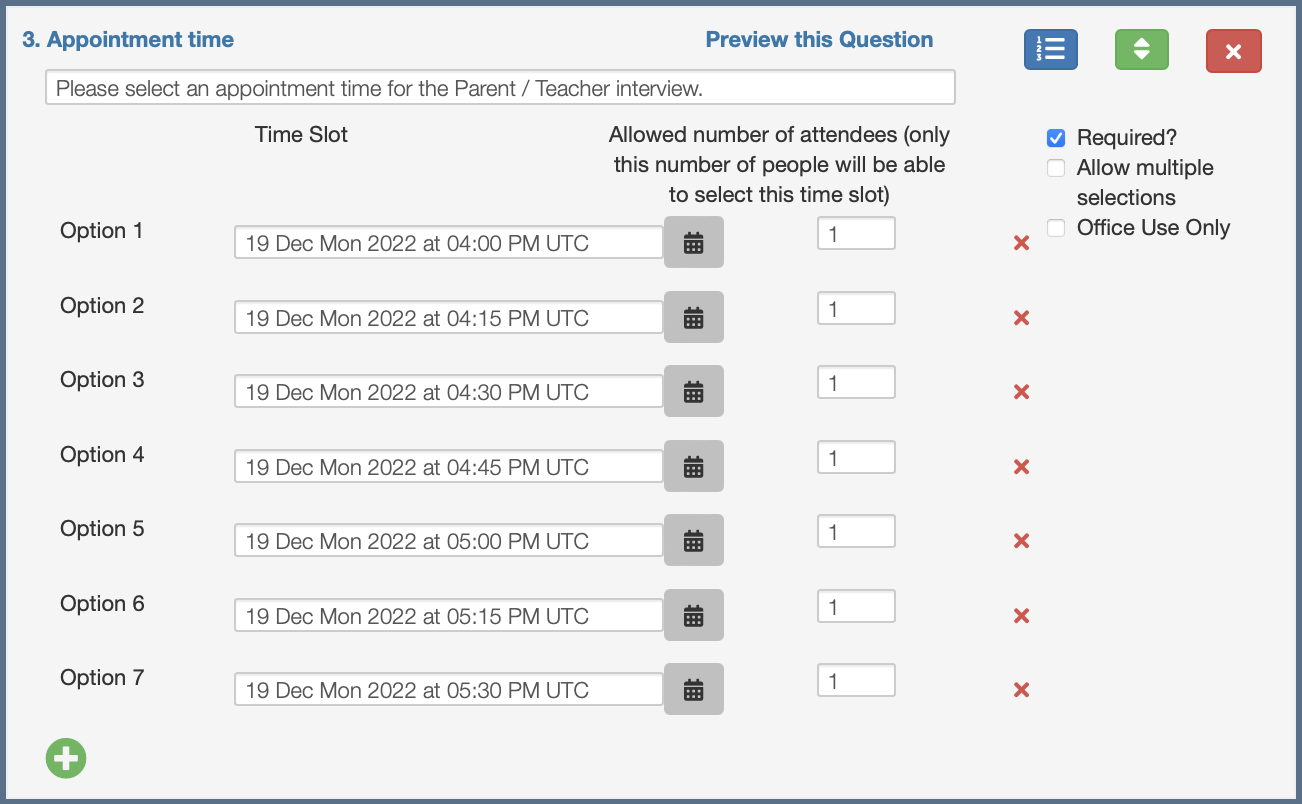
8. Appointment time
9. Request volunteers
This is a pre-defined Yes/No question that allows you to request volunteers from your respondents. It asks the respondents for a Working with Children (WWC) if they do not have one. You will be able to run a report of volunteers, and they will be displayed to staff carers on the mobile application.
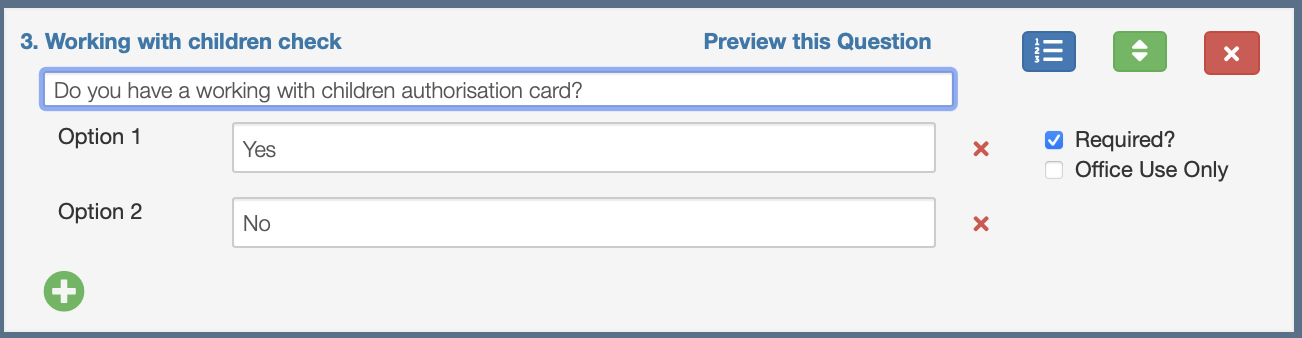
10. Working with Children Check
This is also a pre-defined Yes/No question that allows you to collect the Working with Children (WWC) from the respondents.
11. Date request
This is used to ask for a date, such as the date of birth.
12. Table
This allows you to add a table with custom rows and columns. You can populate any cells of the table, and any cells left blank can be filled out by the carers/account owner.
13. Multi-columned list
This allows you to add a table-like format, but not like in Table; you'll only be able to populate the Heading and the first row. The rest will be for the carer/account owner to fill out.
14. A time Selection
Nominally a time selection, but can be used for a number of other options as indicated by the answer dropdown box.
15. A number (integer or decimal) request
16. An email address request
The option to enter an email address.
17. Scale Question
Let respondents rate something on a numeric range (for example, 1 to 5), with custom labels on each end like "Strongly agree" to "Strongly disagree." Good for satisfaction or agreement ratings.
18. Single-Choice Grid
Presents a matrix of rows and columns where respondents pick one answer per row across a shared set of column options. Useful when asking the same rating scale across multiple items in one compact table.
19. Multi-Choice Grid
Same row and column layout as the single choice grid, but respondents can select more than one column per row. Best for questions where multiple answers per item are valid.
Signature
1. Signature
The Signature question allows the administrator to specify the signature needed from the respondents.
2. Acceptance
Acceptance is used to receive signed consent from the primary carer (typically a parent/guardian). The box is there for the form creator (typically administrators) to add additional content such as exactly what the primary carer is actually consenting to (e.g. Yes, I allow my child to attend this excursion.).
NOTES:
When Excursion Permission is selected, the Acceptance box will be greyed out and can't be edited.
When Signed/Unsigned Custom Form is selected, you can edit the text populated.
3. Participant acceptance
This field allows the member (i.e. students, club members, participants, employees, etc.) to provide a signature as an acknowledgement of something.
Additional Tools
1. Additional notes
This is used to add instructions or other information between questions.
2. Attachment for user
This allows administrators and staff carers to attach a file that profile owners can either open, download, or print.
3. Payment request
You can use this to collect payments from carers/account owners through Stripe. To enable this feature, you must set it up here first: Tools > Group Settings > Setup Payments. For more information on how to set this up, please refer to this article: How does an Administrator set up the Payments Feature?
Stripe is available in the countries listed here: https://stripe.com/global#signup-form.